Google Play Store PC
Gives you access to any type of Apk Android App on your Windows PC.

Safe & Secure
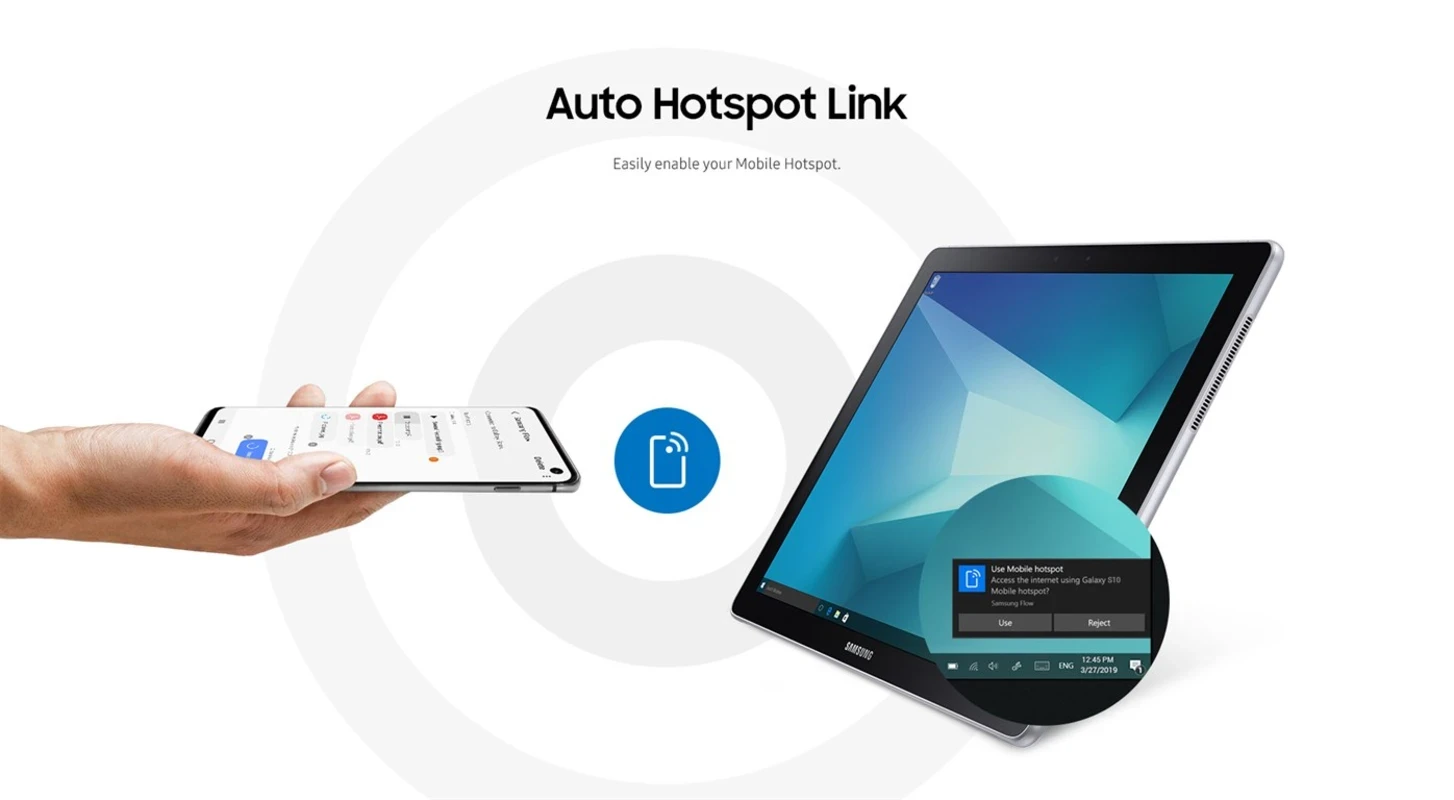


Samsung Flow is the official Samsung app to enable users to connect Samsung smartphones with Windows PCs and tablets. It reliably pairs both devices to enhance the workflow and user productivity; however, you need to install the app on both devices before you start pairing them using Wi-Fi or a cable.
The innovative app offers the convenience of viewing your smartphone content right on your larger screens, and seamlessly shares files and sync notifications as well. It is necessary to update the software to the latest version to avail smooth and fast workflow.
Samsung Flow was developed by Samsung Electronics Co., Ltd, as part of Business, and published under the PIMS & Calendars list of apps. It is lightweight and free to use, offering an effortless way of screen sharing, notification syncing, and content transferring.
The app is reliably useful in both scenarios: personal and professional, bridging between mobile and desktop environments to offer a seamless, secure, and fast transfer experience. You can also enhance the functionality, enabling the Mobile Hotspot to keep your devices connected.
The app offers a simple and convenient procedure to pair your smartphone and computers. Before starting the pairing process make sure all of your software are up-to-date, and open the app on both devices, and select your phone from appeared list on your screen. Enter passcode o confirm the setup. Moreover, you can use “More Options” for customizing the notifications, sync devices for notifications, and select the “Smart View” icon to share screen.
Similar to other software, security and privacy are main concerns, so the app demands authentication to pair devices. You can use various secure authentications in different scenarios such as PIN codes, biometric verification, and so on. It offers robust speed as well as reliability with support for Bluetooth, Wi-Fi Direct, and a local network. However, this optimization depends upon the capability of your device.
Smart View is one of the comprehensive feature, enabling the users to share their screen with others easily. In this way, it is possible to mirror the display of your Samsung smartphone on the larger screen, allowing users to use the mouse and keyboard of their desktop PC or tablet for accessing mobile applications, messages, media, and so on. It is the best solution to operate multitasking or presentations.
The handy tool offers convenience and productivity, offering hassle-free switching across devices, and enables users to quickly access their desired content. It conveniently helps to operate multiple tasks within a guaranteed secure connection. It avoids being overwhelmed while controlling your connected devices through content and notifications.
It makes your sharing of content simple and easy, supporting two types of file transfers, including drag-&-drop functionality and shared clipboard. It enhances productivity to streamline workflow, and allows you to transfer your media files such as photos, videos, audios, and even other important documents to other devices wirelessly.
Intuitive and refined interface with quick navigation helps to access entire functionality, as you will find fluid screen mirroring performance under strong wireless connections, however with a minimal lagging. Fastest file transfers and responsive syncing notifications, alongside an extensive personalized experience such as notification management, screen orientation, and resolution settings. However, the entire functionality depends upon the device’s capability and network connectivity.
It is one of the core features, allowing users to sync their devices to get notifications reliably on any device. It is one of best and quick way of accessing to your mobile’s content right on your PC, and easily response to others. It is also customizable, as you can enable/disable notifications, or filter in which type you want the notifications appear. It helps to manage the notifications as according to your preferences, avoiding all types of interruptions.
As the app works for multiple devices, offering multitasking capability. So it requires multiple permissions such as;
Pros
Cons
Gives you access to any type of Apk Android App on your Windows PC.

PC App Store download, install, and keeps up-to-date your PC programs
free emulator to play Android apps on your pc with extra performance, reliability

Bijoy Bayanno the most powerful software to write Bengali language on PC
Media Creation Tool is upgrading and installing Windows 10 bootable installed disks.
Rufus easily change your USB Flash to a bootable ISO flash drives.